How to use a proxy: system, browser, phone and code
How to use a proxy on Windows, macOS, iPhone, Android, Chrome, Firefox, curl and Python: what the details mean, where they go, and how to check it works.
Quick summary · TL;DR
- Using a proxy takes four steps. Read the host, port, username, password and protocol, pick where the proxy applies, enter the details there, then verify the exit IP and country.
- Scope decides what leaks. A system setting covers only apps that read it, a browser setting covers one browser, and a script covers exactly the requests it sends.
- Credentials are the usual failure. The Windows dialog and Android's Wi-Fi proxy have no password field, and Chrome and Firefox have no field for a SOCKS5 login.
- Keep the proxy URL on http:// or socks5h://. HTTPS sites still run end to end through a CONNECT tunnel; https:// to the proxy is a different feature.
To use a proxy, get four details from the provider (host, port, username and password, plus the protocol), decide where the proxy should apply (the whole system, one browser, one app or one script), enter the details there, then confirm the exit IP and country through an IP echo page. Most failures come from the second and fourth steps, not the first.
That is how to use a proxy in one paragraph. The details are where it goes wrong. Windows has no password field in its proxy dialog. Android’s Wi-Fi proxy is a hint that apps are free to ignore. Chrome has no proxy screen of its own. And a proxy that “works” often only covers the browser tab while every other app on the machine goes direct.
This guide maps every place a proxy can live, with the short click path for each, the code for scripts, a verify step that proves the exit, and a table of the errors people actually hit. The click paths follow each vendor’s own support pages, accessed in September 2026.
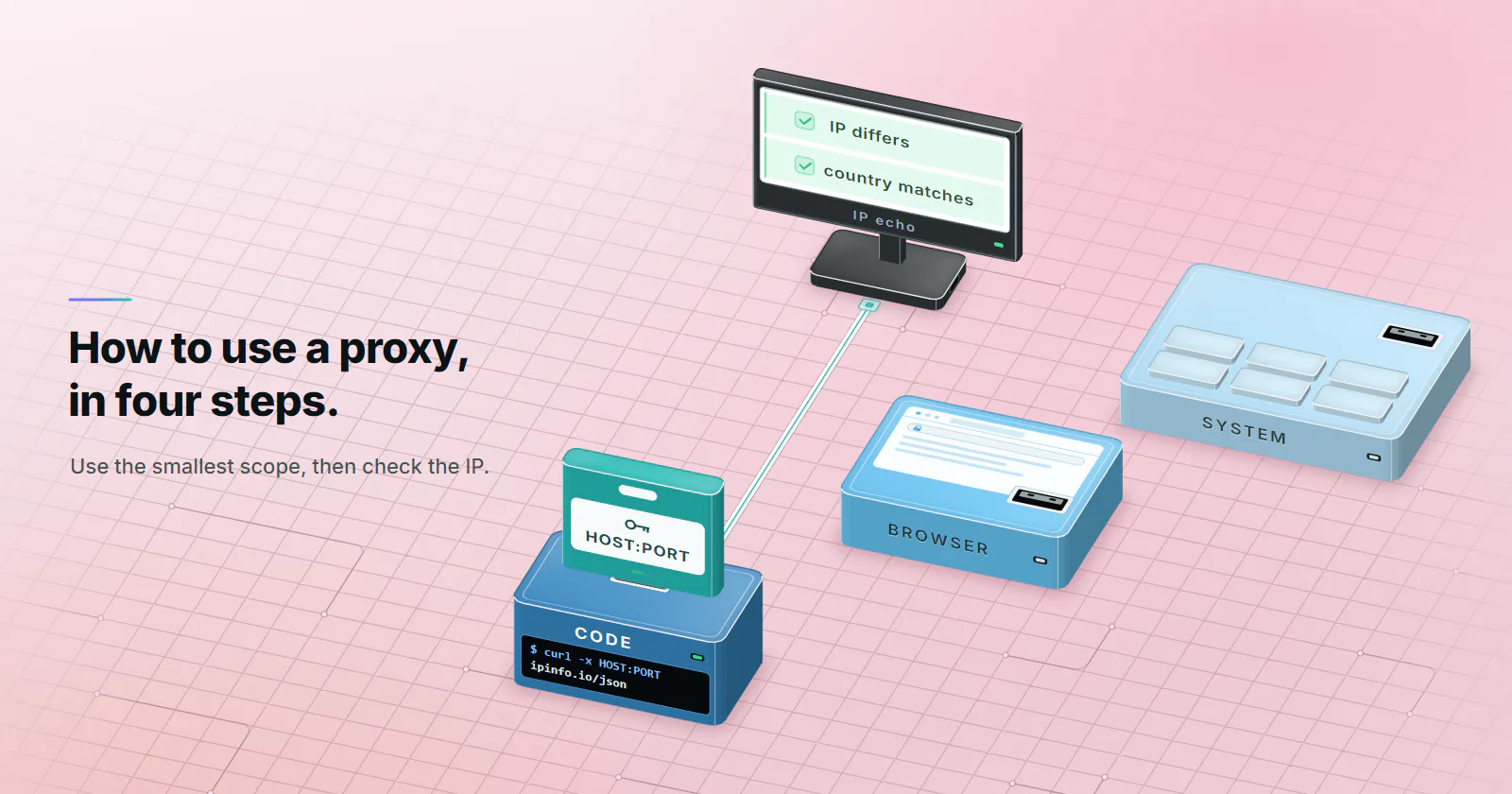
How to use a proxy in four steps
1. Read the details. A proxy login is a host (a hostname or an IP address), a port, a username, a password and a protocol. Every tier proxymint sells takes HTTP and SOCKS5, and logs in with a username and password.
2. Pick the scope. A system setting covers apps that read it. A browser setting covers one browser. An environment variable or a line of code covers one script. Choose the smallest scope that does the job.
3. Enter the details. Host and port go in the proxy fields. Credentials go in whatever the surface offers: a username and password field, a sign-in prompt, or the proxy URL itself.
4. Verify the exit. Load an IP echo page through the proxy, then load it again without the proxy. The IP should differ, and the country should match what the proxy was ordered for.
Read your proxy details first
Providers hand out the same five facts in two common shapes. The colon list is what dashboards export. The URL form is what code, curl and environment variables expect.
HOST:PORT:USERNAME:PASSWORD
http://USERNAME:PASSWORD@HOST:PORT
socks5h://USERNAME:PASSWORD@HOST:PORT
Protocol. HTTP is the default almost everywhere, and it carries HTTPS sites too: the client sends a CONNECT request, and TLS runs end to end between the client and the site inside that tunnel. SOCKS5 is a lower-level tunnel that some apps prefer. With socks5h:// the proxy resolves the hostname; with socks5:// the lookup happens on the local machine.
Reserved characters. If a password contains @, : or /, the URL form breaks unless those characters are percent-encoded: @ becomes %40, : becomes %3A. The colon-list form cannot carry a colon inside a password at all, which is one reason to keep passwords to letters and digits.
Pick where the proxy applies
Most guides on how to use a proxy skip this choice, and the scope decides what leaks. A system-wide proxy feels complete, but many apps never read it. A script-level proxy is narrow, but nothing else on the machine is affected, so there is less to debug.
Set a proxy system-wide
Windows proxy settings
On Windows 11 the path is Settings, then Network and internet, then Proxy. Under manual proxy setup, select Set up next to Use a proxy server, turn it on, and enter the address and port. Microsoft’s support page (accessed September 2026) also covers the setup script option for a PAC address and the exception list, where entries are separated by semicolons, for example *.contoso.com; *.adatum.com.
No password field. The Windows dialog takes only an address and a port. When a proxy needs a username and password, the app that uses the setting asks for them, usually as a sign-in prompt in the browser. Apps that cannot show a prompt simply fail.
HTTP only in practice. Apps that read the Windows setting treat it as an HTTP proxy. For SOCKS5, set the proxy inside the app instead.
macOS proxy settings
On recent macOS versions: System Settings, then Network, pick the service (Wi-Fi or Ethernet), click Details, then Proxies, as Apple’s Mac User Guide describes (accessed September 2026). Turn on Web proxy (HTTP) and Secure web proxy (HTTPS) and enter the same host and port in both: the second one is the proxy used for HTTPS sites, not a TLS connection to the proxy. There is a separate SOCKS proxy entry, a password option for proxies that need one, and a bypass list at the bottom.
The setting belongs to one network service. Switch from Wi-Fi to Ethernet and the proxy is gone.
iPhone and Android proxy settings
iPhone. Settings, Wi-Fi, tap the info button next to the network, then Configure Proxy and Manual. Enter the server and port, turn on Authentication, and add the username and password. Apple’s device management docs note that credentials are only available on the Manual type, and that Auto takes a PAC URL instead (Apple Platform Deployment, accessed September 2026).
Android. Settings, Network and internet, tap the Wi-Fi network, edit it, open Advanced options, set Proxy to Manual, and enter the hostname, port and bypass list. There is no username or password field, and Android’s own screen warns that the HTTP proxy is used by the browser but may not be used by other apps. For an authenticated proxy on Android, set it inside the app that needs it.
On both phones the proxy is tied to that one Wi-Fi network. Mobile data does not use it.
Set a proxy in Chrome and Firefox
Chrome
Chrome on Windows and macOS has no proxy screen of its own. Settings, System, “Open your computer’s proxy settings” hands off to the OS dialog above. To run one Chrome window through a proxy without touching the system, launch it with a flag, as the Chromium SOCKS proxy docs show:
google-chrome --proxy-server="http://HOST:PORT" --user-data-dir=/tmp/chrome-proxy
google-chrome --proxy-server="socks5://HOST:PORT" --user-data-dir=/tmp/chrome-proxy
The flag does not accept a username and password. An HTTP proxy that needs them triggers a sign-in prompt. The same Chromium page notes that the flag covers URL loads only, and other parts of Chrome may still resolve DNS directly.
Firefox
Firefox keeps its own proxy settings, which makes it the easiest browser to point at a proxy while the rest of the machine stays direct. Settings, General, Network Settings, then Settings opens the dialog (Mozilla Support, accessed September 2026). Choose Manual proxy configuration, enter the HTTP proxy host and port, and tick “Also use this proxy for HTTPS”. For SOCKS, fill the SOCKS host, pick SOCKS v5, and turn on “Proxy DNS when using SOCKS v5” so lookups go through the proxy too.
Browser profiles
Neither Chrome nor Firefox has a field for a SOCKS5 username and password. Teams that need one proxy per browser identity use a browser profile tool that stores a proxy per profile. The rule is the same as anywhere else: one login, one profile, and a verify step before the profile touches an account.
Use a proxy in code
Scripts are where the scope is clearest. The proxy applies to exactly the requests the code sends, and every client accepts credentials in the URL.
curl
curl -x http://HOST:PORT -U 'USERNAME:PASSWORD' https://ipinfo.io/json
curl -x socks5h://HOST:PORT -U 'USERNAME:PASSWORD' https://ipinfo.io/json
-x sets the proxy, -U carries the credentials, and the curl manual (accessed September 2026) lists the schemes it accepts. Always write the port.
Environment variables
Many command-line tools read http_proxy, https_proxy and no_proxy. The value of https_proxy is still an http:// URL: it names the proxy used for HTTPS sites, not the scheme to the proxy.
export http_proxy="http://USERNAME:PASSWORD@HOST:PORT"
export https_proxy="http://USERNAME:PASSWORD@HOST:PORT"
export no_proxy="localhost,127.0.0.1"
Casing varies by tool: curl reads http_proxy only in lowercase, while other tools also read the uppercase names. Setting both is the safe habit.
Python Requests
import requests
from urllib.parse import quote

# Percent-encode the login so @, : or / in a password cannot break the URL
user = quote("USERNAME", safe="")
password = quote("PASSWORD", safe="")
proxy = f"http://{user}:{password}@HOST:PORT"
r = requests.get(
    "https://ipinfo.io/json",
    proxies={"http": proxy, "https": proxy},
    timeout=15,
)
print(r.json())
For SOCKS, install requests[socks] and use a socks5h:// URL. The Requests advanced usage docs (version 2.34, accessed September 2026) explain the difference: socks5 resolves DNS on the client, socks5h on the proxy server.
Check the proxy works
A proxy that silently is not in the path looks exactly like a proxy that works, until a report comes back with the wrong country. Run the same check every time a setting changes.
- Load an IP echo endpoint without the proxy. ipinfo.io/json is one example; any service that returns the caller’s IP and country works.
- Load it through the proxy, from the same browser, app or script.
- Compare. The IP must differ, and the country must match the order. A different IP in the wrong country is a failed setup, not a pass.
- For SOCKS setups, confirm DNS goes through the proxy (
socks5h://, or Firefox’s “Proxy DNS” box). Otherwise the local network still sees every hostname. - In a browser, check WebRTC on a test page. Some browser setups expose addresses outside the proxy path through it.
Common proxy errors and fixes
| Symptom | What it means | Fix |
|---|---|---|
| 407 Proxy Authentication Required | The proxy refused the login. The site never saw the request | Check the username and password, percent-encode reserved characters, check the package is active |
| Connection refused | Nothing is listening on that host and port | Check the port and the protocol: an HTTP port will not answer SOCKS |
| Timeout | The proxy is unreachable or the exit is slow | Retry, raise the timeout, test the same login with curl |
| Works in the browser, not in the app | The app ignores the system setting | Set the proxy inside the app or in code |
| Site still shows your real country | The request did not go through the proxy | Check the scope, then check for DNS or WebRTC exposure |
Which proxy type fits the job
How to use a proxy well comes down to one more choice: the type of address behind it. The setup steps above are the same for all four types, and so are the protocols (HTTP and SOCKS5, both included on every proxymint tier). What changes is how the target sees the exit and how it is billed.
Testing a setup or polling a lenient API: a datacenter port is enough, billed per IP per month. See datacenter proxies and the explainer on what datacenter proxies are.
Scraping or monitoring targets that score IP type: rotating residential proxies, billed per GB with rotation set on the order (every request, a 5 to 60 minute timer, or sticky while the device stays online). The guide to what a residential proxy is covers when it fits.
Logging in to the same account from the same place: a static ISP address assigned to your order for the whole billing term, billed per IP per month. See static ISP proxies.
App-first platforms that expect a carrier origin: mobile proxies, per GB. The carrier address is only the first check, covered in can mobile proxies be detected. For bulk scraping, residential is the better fit.
Every order is a one-off package that does not renew, the rate falls as the order grows, and no expiry is set on the GB. For every tier side by side, read types of proxies.
Frequently asked questions
Get the host, port, username, password and protocol from the provider. Enter them where the proxy should apply: the operating system settings, one browser, one app, or the proxy URL in a script. Then load an IP echo page with and without the proxy and check that the IP and the country changed as expected.
Open Settings, then Network and internet, then Proxy. Under manual proxy setup, select Set up next to Use a proxy server, turn it on, enter the address and port, and add any exceptions separated by semicolons. The dialog has no password field, so an app that uses the setting asks for the username and password itself.
Chrome uses the operating system proxy settings, and its Settings page links to them under System. To run one Chrome window through a different proxy, launch it with the --proxy-server flag and a separate user data directory. The flag does not take credentials, so an HTTP proxy that needs a login shows a sign-in prompt.
Load an IP echo endpoint without the proxy, then load it again through the proxy from the same browser, app or script. The IP should be different and the country should match the location the proxy was ordered for. For SOCKS setups, also confirm that DNS lookups go through the proxy.
A proxy replaces your IP with its own for the traffic that goes through it, so the target site sees the proxy's exit address. Traffic from apps that do not use the proxy still shows your real IP, and DNS lookups or WebRTC can expose details outside the proxy path. A proxy is not an anonymity tool on its own.
Using a proxy is legal in most countries, and companies use them every day for testing, monitoring and research. What you do through the proxy is judged on its own: fraud, unauthorised access or breaking a site's terms stays unlawful or prohibited with or without one. This is general information, not legal advice.
A proxy usually routes one browser, app or script and does not encrypt the link between you and the proxy by itself. A VPN routes the whole device through an encrypted tunnel. Proxies suit per-app jobs such as scraping and QA with a chosen exit location, while a VPN suits protecting all traffic on an untrusted network.
Researched and drafted with AI tools, then checked against our publishing rules before it went live: 7 outside links, 13 links to other proxymint pages, no prices and a fact-check pass against our product records. How we write.