How to set up a proxy on Android and iPhone
How to set up a proxy on Android and iPhone: Wi-Fi steps, what the setting misses, logging in with a password, mobile data, and device-wide options for QA.
Quick summary · TL;DR
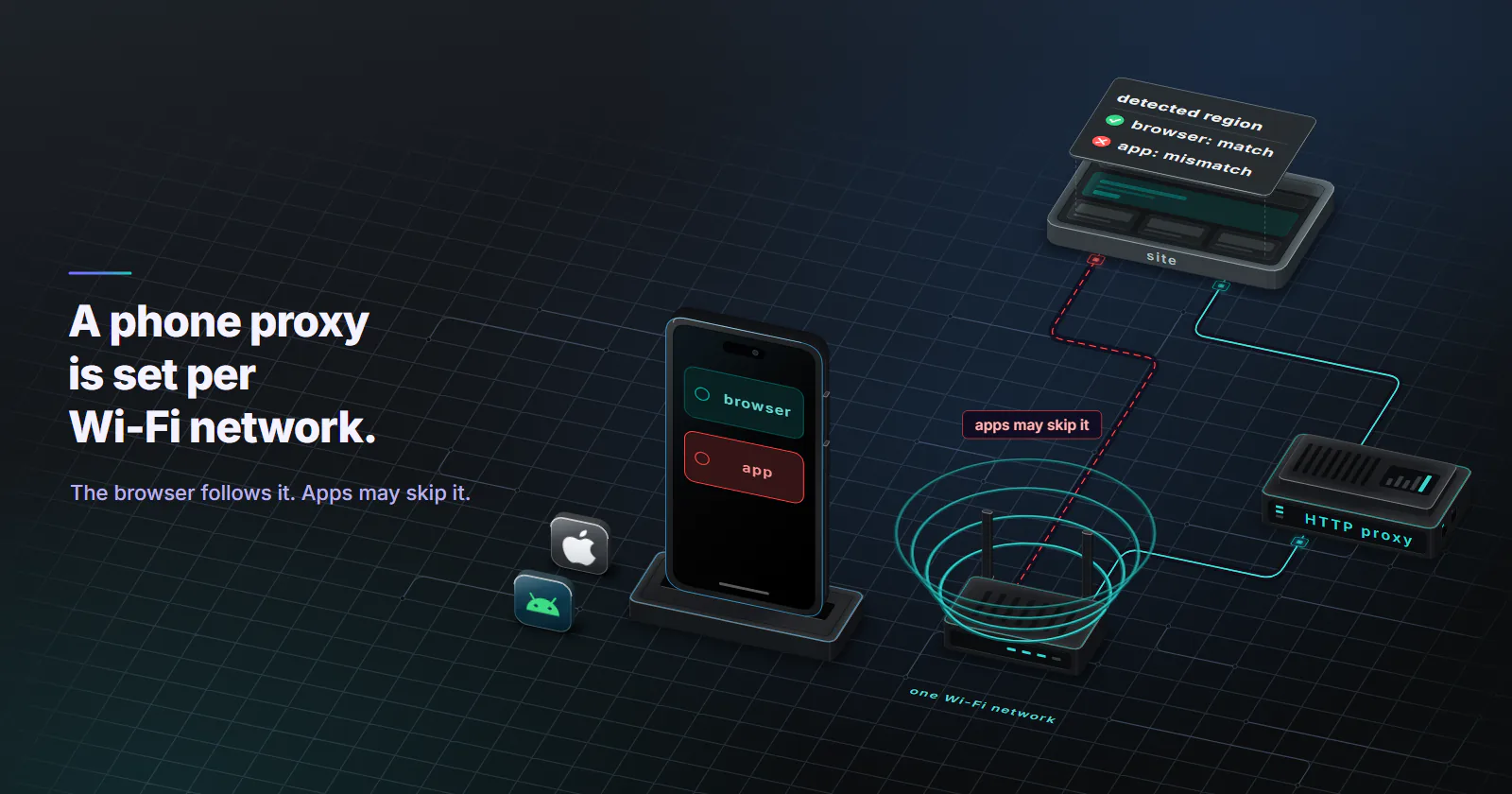
- Both phones set the proxy per Wi-Fi network. On Android it sits under the network's Advanced options, on iPhone under Configure Proxy in the network's info page. Cellular traffic and other Wi-Fi networks are not covered.
- It is an HTTP proxy, and apps may ignore it. Android's java.net and Apache stacks follow it automatically and iOS URLSession follows it by default. Apps with their own networking can skip it, and UDP never goes through it.
- Only iPhone takes a password in the Wi-Fi screen. iOS has an Authentication toggle. The Android dialog has hostname, port, bypass list and PAC URL fields only, so a username and password proxy may prompt in the browser and fail in most apps.
- Mobile data and credentials need another route. Android's APN editor has a proxy field, but its Username and Password log in to the carrier's access point, not the proxy. The emulator, an app's own proxy setting or a VPN-based client carry credentials.
How to set up a proxy on Android: open the connected Wi-Fi network’s settings, tap Edit, expand Advanced options, set Proxy to Manual, then enter the proxy hostname and port and save. On iPhone the same setting sits under the Wi-Fi network’s info page, in Configure Proxy. Both apply to that one Wi-Fi network only, and both accept an HTTP proxy.
That is the easy half. The proxy is in, Safari shows the right exit IP, and the app under test still reports the office’s home country. Or the Android dialog is open and there is nowhere to type the proxy password.
Both are normal, and both have a fix that needs no root access. Desktop, browser and code setups are in how to use a proxy.
How to set up a proxy on Android
Android keeps the proxy inside each Wi-Fi network’s settings, not in a global menu. Names vary by phone and Android version. On a current Pixel the path is:
- Open Settings, then Network & internet, then Internet.
- Tap the connected Wi-Fi network, then tap Edit (the pencil icon).
- Expand Advanced options.
- Under Proxy, pick Manual.
- Enter Proxy hostname (HOST) and Proxy port (PORT). Optionally list hosts in Bypass proxy for, separated by commas.
- Tap Save, then open the browser and load an IP lookup page to confirm the exit.
Samsung and other manufacturers move the menu, not the fields. On a Galaxy the same hostname, port and bypass list sit under Connections, Wi-Fi, then the network’s gear icon, in its advanced section. No root access is needed for any of it.
Proxy Auto-Config. The third option takes a PAC URL instead of a fixed host. It suits a fleet of test devices that should all pick up a routing change from one file.
What the dialog does not have. The Android Settings source lists every label in this screen. The AOSP Settings strings (main branch, checked September 2026) define proxy hostname, proxy port, “Bypass proxy for” and a PAC URL. There is no username and no password. The same file holds the warning Android shows under the fields: the HTTP proxy is used by the browser but may not be used by the other apps.
iPhone proxy settings, step by step
Apple’s iPhone User Guide for iOS 27 (checked September 2026) places HTTP Proxy in the settings of the connected Wi-Fi network. The iPhone proxy settings path:
- Open Settings, then tap Wi-Fi.
- Tap the info button next to the connected network.
- Scroll to HTTP Proxy and tap Configure Proxy.
- Choose Manual. Enter Server (HOST) and Port (PORT).
- Turn on Authentication and enter USERNAME and PASSWORD.
- Tap Save, then check the exit IP in Safari.
Automatic takes a PAC URL, the same idea as on Android. Off removes the proxy for that network.
Unlike Android, iOS stores credentials with the proxy. Apple’s device management documentation for the Wi-Fi payload describes the same model: a manual proxy is a server address and port with an optional user name and password, and an automatic proxy is a PAC URL.
What the Wi-Fi proxy covers
Knowing how to set up a proxy on Android or iPhone gets the setting saved. What it routes is a separate question: the system proxy is a hint that the platform’s standard HTTP stack follows, and anything outside that stack decides for itself.
On Android. The ProxyInfo reference (last updated 3 August 2026) says the proxy configuration is integrated with the java.net and Apache HTTP stacks, so URLConnection and HttpClient use it automatically. Other HTTP stacks have to read it themselves from ConnectivityManager. An app built on its own networking library, a game engine or a native socket layer can skip that step and go direct.
On iPhone. A URLSession task uses the system proxy unless the app says otherwise: Apple’s documentation for connectionProxyDictionary (checked September 2026) states that the default value means tasks use the default system settings. And the Network framework has a documented switch, preferNoProxies (checked September 2026), that tells connections to ignore proxies enabled on the system. So an app can opt out on purpose.
Only HTTP and HTTPS. Google’s Android Emulator proxy guide (last updated 12 March 2026) describes the Android system proxy as primarily handling HTTP and HTTPS traffic, and notes that some apps may ignore it. UDP traffic, push notification channels and non-HTTP protocols do not go through an HTTP proxy.
Only this Wi-Fi network. On both systems the setting lives inside one network’s page. Join a different network or drop to cellular and the proxy is gone.
Proxy authentication on each phone
Proxy authentication is where Android and iPhone split.
iPhone: username and password in the Wi-Fi screen. Turn on Authentication and type the credentials. They are stored per Wi-Fi network, so a second network needs them entered again.
Android: no credential fields. The Wi-Fi dialog saves a host and port, and the phone sends requests to the proxy without a login. A proxy that requires a username and password answers with a 407 Proxy Authentication Required challenge. The browser may show a sign-in prompt at that point. Most native apps do not handle the challenge, so they fail or show a generic network error.
That makes the Wi-Fi dialog fine for a quick browser check on Android and weak for app testing with a credentialed proxy. When the proxy needs a username and password, three routes carry them:
- The Android emulator, which takes the credentials on its command line (below).
- The app’s own proxy setting, when the app under test has one.
- A VPN-based proxy client that stores the credentials and routes the device’s traffic through the proxy.
On proxymint, authentication on every tier is a username and password. For the phone flow that means the iPhone Authentication toggle, and on Android an app-level route: the app’s own proxy setting, a VPN-based client or the emulator, since the Wi-Fi dialog cannot send the login.
Proxy on mobile data
Neither Wi-Fi setting touches cellular traffic. A phone that leaves the office network, or a test that has to run on the carrier connection, needs a different route.
Android APN proxy field
Android’s access point editor has its own proxy. Open Settings, then Network & internet, then SIMs (or Mobile network), then Access Point Names, and tap the active APN. The AOSP strings define Proxy and Port fields in the “Edit access point” screen, described in the source comments as the address and port of the proxy to use for this APN.
Two warnings before touching it:
- Username and Password on that screen are not proxy fields. The same source comments describe them as the credentials used when connecting to the APN, which is the carrier’s access point. Proxy credentials typed there can stop the data connection from coming up.
- Carriers decide whether it works. Some carriers lock the APN or ignore a custom proxy, and some phones hide the editor. Note the original values first, so the APN can be restored or reset to default if mobile data drops.
iPhone has no user-facing cellular proxy setting at all, so on an iPhone the app-level and VPN-based routes below are the options.
App-level and VPN-based clients
App-level. When only one app matters and it has a proxy setting of its own, configure the proxy there. It skips the OS question entirely, often supports SOCKS5 and credentials, works on Wi-Fi and cellular alike, and leaves the rest of the phone’s traffic alone.
VPN-based proxy clients. Apps that use the platform VPN interface capture traffic from every app, including apps that ignore the HTTP proxy, and on both networks. Many support SOCKS5 and credentials. They add a moving part to the test setup, so check three things before trusting one: which apps it routes, whether it carries UDP or drops it, and where DNS lookups are resolved. A client that resolves names locally tells the target’s DNS about the real network even when the exit IP is right.
DNS follows the protocol. Over HTTP CONNECT the proxy side resolves the target’s name, and on proxymint’s per-GB tiers that happens on the gateway side (our US test exits resolved through US public resolvers). With SOCKS5, the client decides: remote resolution (the socks5h form, or a “remote DNS” switch in the app) sends the name to the proxy, while plain socks5 makes the phone resolve it on the local network first. When an app or client offers the choice, pick remote DNS.
Device-wide setup for test fleets
The fastest way to proxy a whole Android test device skips the Wi-Fi dialog. Android documents a global setting in its Settings.Global reference, HTTP_PROXY, with the constant value http_proxy and a host:port format. On a test device with USB debugging, a tester can set it from a terminal:
# route the device's system HTTP proxy through HOST:PORT
adb shell settings put global http_proxy HOST:PORT

# check the current value
adb shell settings get global http_proxy

# clear it when the test run ends
adb shell settings put global http_proxy :0
It is still an HTTP proxy with no credential fields, so a username and password proxy prompts in the browser or fails in apps, as on Wi-Fi. And apps that ignore the system proxy still ignore it.
The Android emulator. For automated runs with credentials, the emulator’s own proxy is usually the better tool. Per the emulator guide cited above, it takes the proxy on the command line, forwards all of the virtual device’s TCP traffic rather than only HTTP, and supports credentials. It does not redirect UDP. Percent-encode any @, : or / in the username or password before putting them in the URL.
emulator @TEST_AVD -http-proxy http://USERNAME:PASSWORD@HOST:PORTSupervised iPhones. Apple’s Global HTTP Proxy payload (checked September 2026) sets one proxy for the device through device management, with a manual server, port, user name and password, or a PAC URL. On iOS it requires a supervised device, which rules it out for most personal phones and fits a managed test fleet.
Check that the proxy works
Saving the setting proves nothing. The check takes two minutes and has three parts:
- In the browser. Load an IP lookup page over
https://, not plainhttp://(proxymint’s per-GB gateway, and others, redirect plain HTTP to thehttps://address), and confirm the IP, network name and country belong to the proxy exit rather than the local Wi-Fi or carrier. - Inside the app under test. Compare the app’s detected region, account country or storefront with the browser, since a match in the browser and a mismatch in the app means the app bypasses the system proxy.
- At the proxy. Watch the provider’s traffic counter or logs while the app runs, because no traffic during an app session is the clearest sign the app goes direct.
For a carrier exit, the network name matters as much as the country. A mobile exit should show a mobile carrier network, not a hosting provider; carriers often share one address across many subscribers through CGNAT.
Common failures and fixes
- No internet after saving. Usually a typo in the host or port, or the proxy is down. Recheck both fields, then set Proxy back to None to confirm the network itself works.
- 407 errors or a sign-in prompt that keeps coming back. The proxy wants credentials the phone is not sending. On iPhone, recheck the Authentication fields. On Android, the Wi-Fi dialog cannot store them; move app tests to one of the routes that can.
- The app ignores the proxy. Its networking stack does not read the system setting. Use the app’s own setting, a VPN-based client or the emulator.
- Wrong country at the exit. Check the location chosen on the proxy order, then clear the app’s cache: some apps store the region from a first launch.
- It worked yesterday and not today. The phone may have joined another Wi-Fi network, which has no proxy set.
Turn off the proxy on Android and iPhone
On Android, open the same Wi-Fi network, tap Edit, expand Advanced options and set Proxy to None. For the adb setting, run the clear command above. On iPhone, open the network’s info page, tap Configure Proxy and choose Off. A proxy left on after a test turns into a phone that “has Wi-Fi but no internet” as soon as the proxy stops answering.
Which exit fits a phone test
The proxy’s exit decides what the target sees, and on a phone test that choice matters more than the setup method.
Carrier origin. Apps and ad networks that check for a mobile network want a carrier IP. Mobile proxies exit from mobile carrier networks, classified as cellular by MaxMind, with country, region and city targeting. How a carrier exit differs from a home one is covered in mobile vs residential proxies.
Home broadband origin. A test that only checks a regional storefront or a localized landing page in the browser does not need a carrier. Rotating residential proxies are built for that: home ISP exits with country, region and city targeting.
The rest of the phone still speaks. The exit IP changes; the phone’s timezone, language, SIM country and installed apps do not, and the target can read those too. For localisation QA, set the phone’s language to the market whose pages the test has to check.
Which phone setup fits the test
Match the setup to what the test has to prove:
- If the test is a website in a phone browser, the Wi-Fi dialog is enough on iPhone, with credentials in the Authentication toggle. On Android, test the browser’s sign-in prompt on the device first, and move to an app-level or VPN-based client if it does not appear.
- If the test is a native app, check whether the app follows the system proxy with the in-app check above. If it ignores the setting, or the proxy needs a password on Android, move to the app’s own proxy option, a VPN-based client, or the emulator proxy.
- If the test has to run on cellular, use a VPN-based client. The Android APN proxy field is a carrier-dependent fallback, and its login fields are not for the proxy.
- If a fleet of test devices needs the same exit, use the global setting:
adb shell settings put global http_proxyon Android, a Global HTTP Proxy profile on supervised iPhones, or the emulator for credentialed runs. - If the target insists on a carrier origin, use a mobile exit; for a regional storefront in the browser, residential.
Frequently asked questions
Open Settings, then Network and internet, then Internet, tap the connected Wi-Fi network and tap Edit. Expand Advanced options, set Proxy to Manual, enter the proxy hostname and port with an optional bypass list, and save. Menu names vary by manufacturer and Android version, but the fields are the same, and no root access is needed.
Open Settings, tap Wi-Fi, then tap the info button next to the connected network. Scroll to HTTP Proxy, tap Configure Proxy and choose Manual to enter a server and port, or Automatic to use a PAC URL. Turn on Authentication to add a username and password.
Not through the Wi-Fi dialog, which has fields for hostname, port, a bypass list and a PAC URL but none for credentials. The browser may ask for the login when the proxy challenges it, but most apps fail with a 407 error. For apps, use the Android emulator's proxy option, the app's own proxy setting, or a VPN-based proxy client that stores the credentials.
No. On Android the setting is built into the java.net and Apache HTTP stacks, other libraries must read it themselves, and Android's own settings screen warns that other apps may not use it. On iPhone, URLSession uses the system proxy by default, but the Network framework lets an app ignore it, and UDP traffic never goes through an HTTP proxy.
Not with the Wi-Fi setting, which applies to one Wi-Fi network only. Android's APN editor has Proxy and Port fields, but carriers may ignore them, and its Username and Password fields log in to the access point, not the proxy. A VPN-based proxy client is the route that works on cellular on both Android and iPhone.
Not in the system Wi-Fi settings, which accept an HTTP proxy only. SOCKS5 needs an app that supports it directly or a VPN-based proxy client. For most phone testing the provider's HTTP endpoint is the simpler choice.
Load an IP lookup page in the phone browser and confirm the IP, network and country belong to the proxy exit, not the local Wi-Fi. Then check inside the app under test, since the browser can use the proxy while an app goes direct. The proxy provider's traffic counter or logs should also show the requests.
Researched and drafted with AI tools, then checked against our publishing rules before it went live: 7 outside links, 6 links to other proxymint pages, no prices and a fact-check pass against our product records. How we write.